Setting up contact channels in Chaaty
WhatsApp, Messenger, Telegram and phone — how to switch each on, what visitors see, and how channels and the AI assistant share the work.
Contact channels put your real-world contact points — WhatsApp, Messenger, Telegram, phone — inside the chat widget, so visitors choose between instant AI answers and a direct line to you. Setup is one screen.
The channels screen
In your dashboard, open Contact channels. Each channel is a toggle plus one detail:
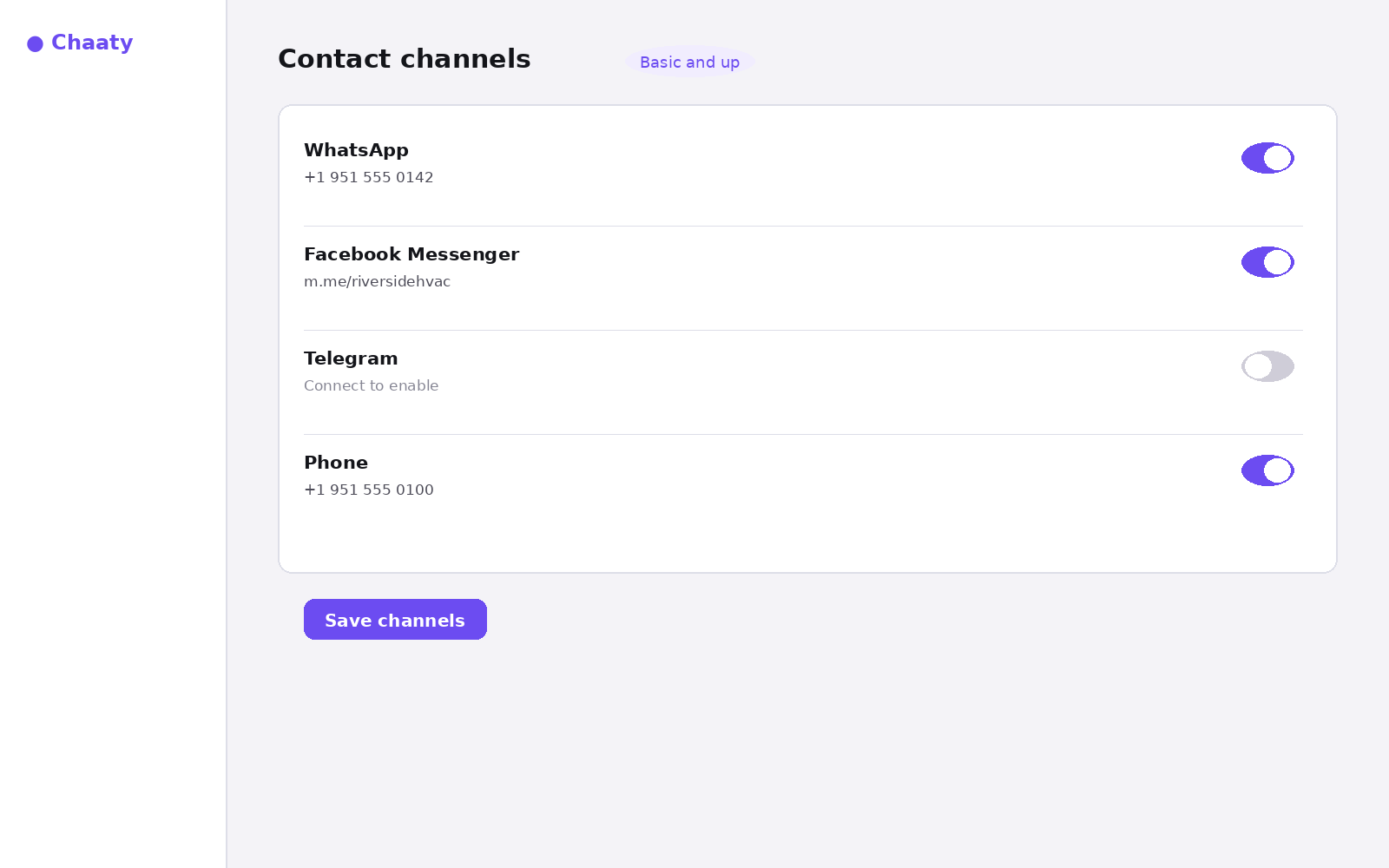
- WhatsApp — your number in full international format. The WhatsApp guide covers the details.
- Messenger — your page's m.me link.
- Telegram — connect your account; available on Business and up.
- Phone — the number you want tapped-to-call on mobile.
Short on time? Create your free assistant and it does the setup below for you — no card needed.
What visitors see
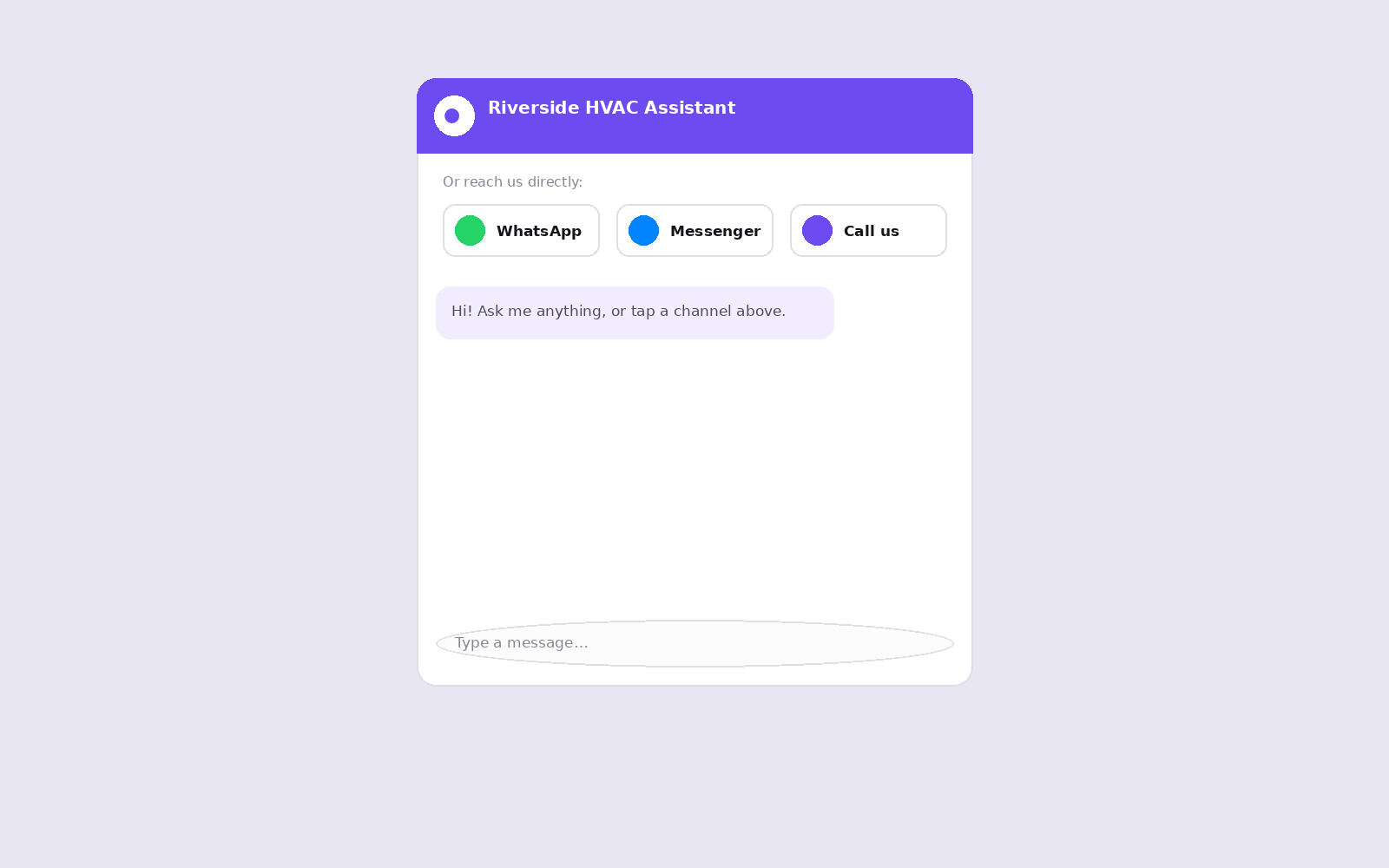
Enabled channels appear as buttons at the top of the widget, above the conversation:
The one rule that matters
Only enable channels someone actually monitors. A WhatsApp button that goes unanswered for two days damages trust more than no button at all — the assistant, at least, always replies instantly. The healthy pattern: AI handles the routine 80%, channels carry the conversations that need a human.
Unlock this feature on your assistant
Available on Basic and up. Upgrade in a minute — cancel any time.