Setting up booking in Chaaty, start to finish
The complete booking configuration — services, hours, holiday overrides, reminders, and how to manage what gets booked.
This is the full configuration walkthrough for booking. If you want the overview of what chat booking does for your business first, start here.
Define your services
Open your dashboard's Booking section. Each service needs a name and a duration:
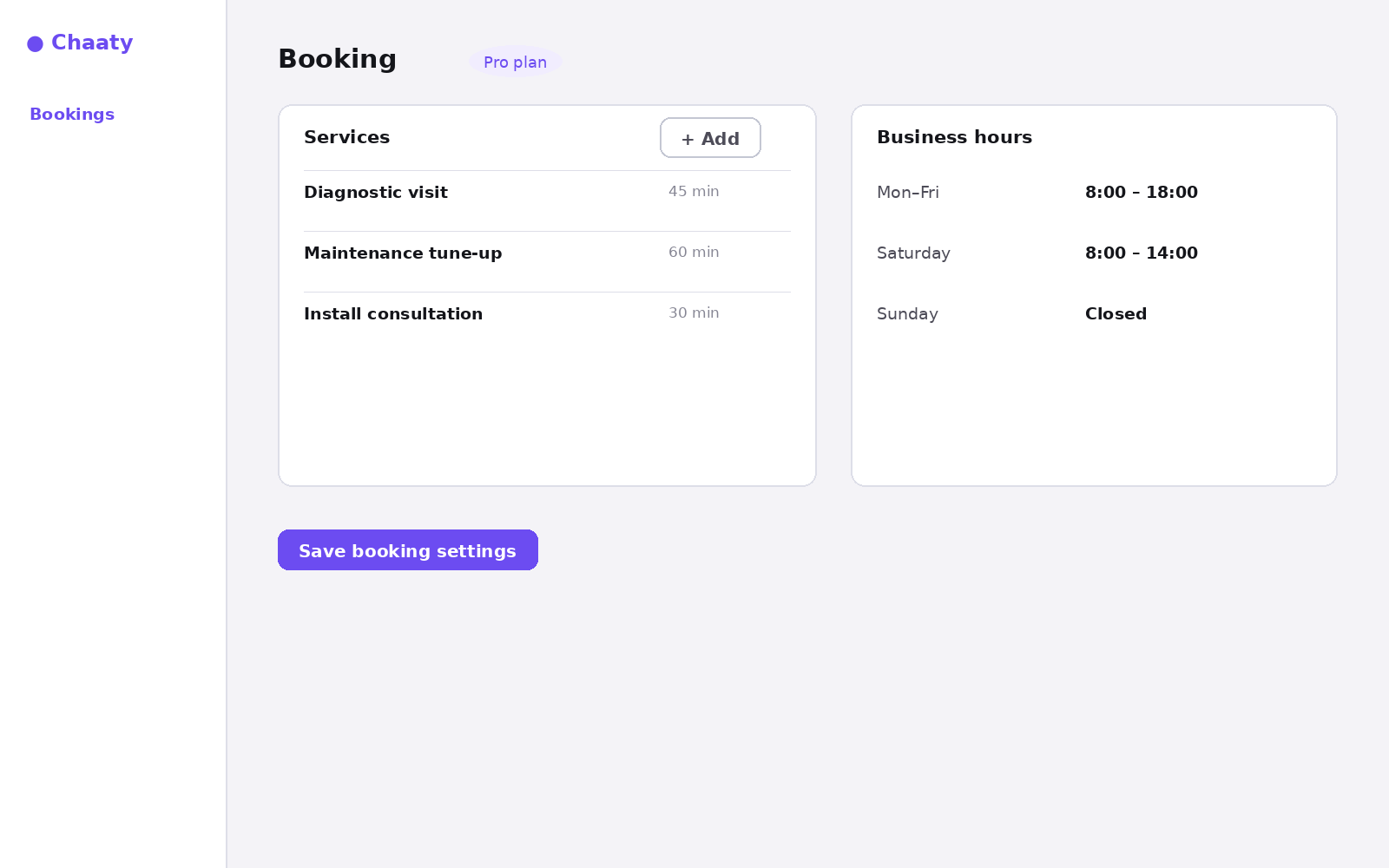
Three rules that make matching work well:
- Name services the way customers ask for them. "Tune-up" beats "preventative maintenance tier 2".
- Set honest durations — include travel or reset time if a 45-minute job really blocks an hour.
- Fewer is better. Five clear services convert better than fifteen overlapping ones.
Short on time? Create your free assistant and it does the setup below for you — no card needed.
Set your hours
Business hours define the offerable window per weekday. The assistant only ever proposes slots inside them, so a Sunday request gets "we're closed Sundays — Monday 8:00 works, want it?" rather than a false promise.
Add overrides for holidays
One-off closures — public holidays, vacation weeks — go in as availability overrides. Set them once when you plan the year and December bookings stop being a problem before it starts.
Turn on reminders
Automatic reminders go out before each appointment and are the single biggest no-show reducer. Turn them on and leave them on.
The visitor's side, end to end
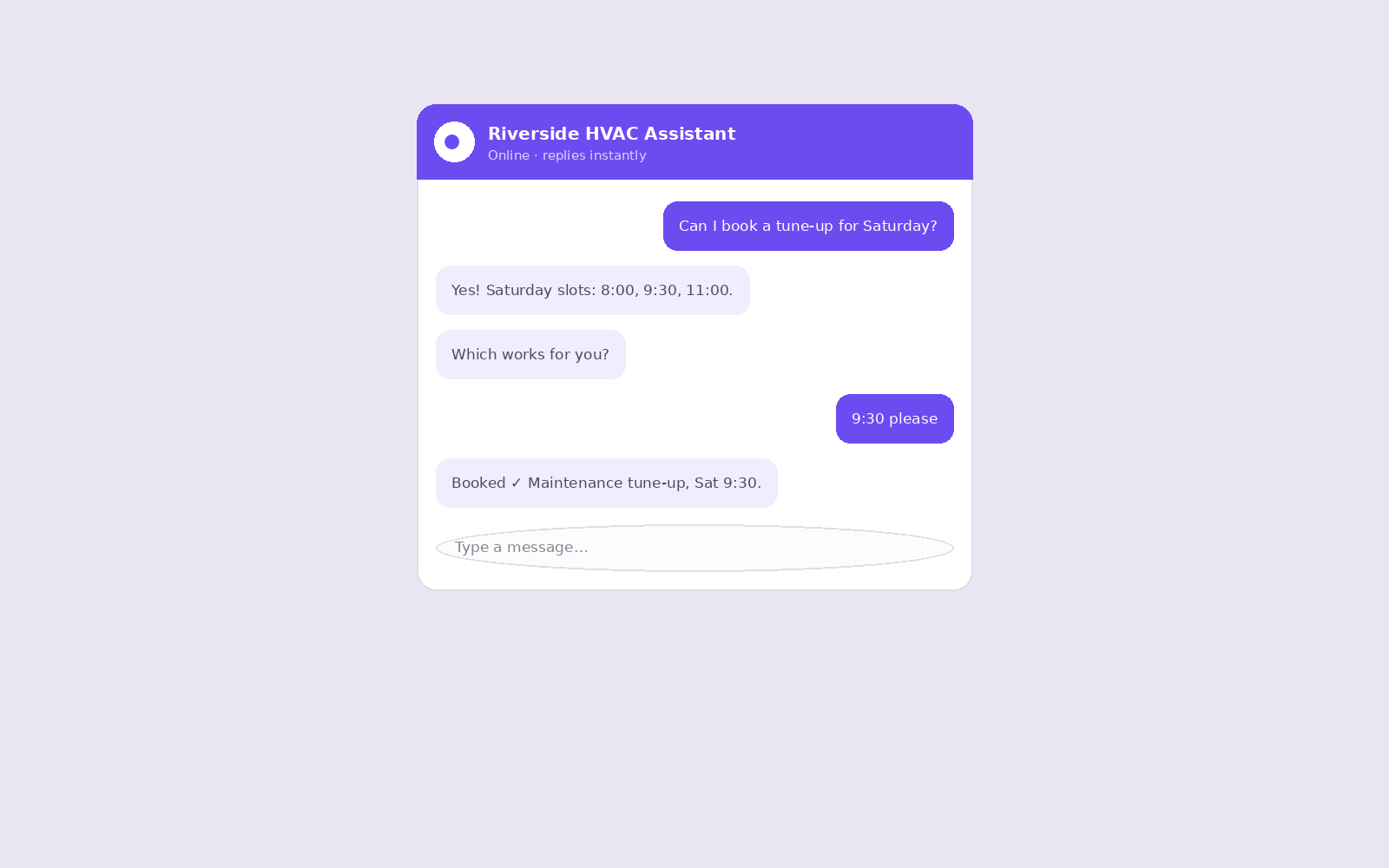
Everything lands in Bookings in your dashboard, where you can view, reschedule or cancel. Pair booking with lead capture and even the visitors who don't book leave you a way to follow up.
Unlock booking on your assistant
Available on Pro and up. Upgrade in a minute — cancel any time.